

Gaming is all about excitement, fun and adrenaline. But setting up a new game console can be a pain in the neck more often than not. If you’ve recently got your hands on an HSSGamestick, you’re probably eager to jump straight into retro gaming. The initial impression of establishing this gadget may seem a bit challenging. But the positive aspect is that it is easy and user-friendly. This instruction manual HSSGamestick will take you through it step by step, in an easy-to-understand manner. So, if you are into gaming and want to try your hand at a new retro type, this is for you.
What Is HSSGamestick?
The HSSGamestick is a small gaming box that directly connects to your TV via HDMI. It has thousands of retro games already installed across various consoles, making it a convenient retro gaming system. It does not need downloads, installations, or an internet connection. Unlike traditional gaming systems, you just have to plug in and play.
What Comes in the Box?
It is worth knowing what you will get in the box before you learn to set it. Most HSSGamestick packages include everything you need to start immediately.
- Gamestick Machine: This is the primary device that you insert into your television and play the games. It is small and easily portable to set up anywhere.
- Wireless Controllers (Typically 2): This is a type of controller that is comfortable to play with and allows multiplayer. These typically have a battery or rechargeable cell.
- USB Receiver (Dongle): This is another important thing. You can connect the controllers wirelessly to the game stick with a USB receiver.
- USB Power Cable: This supplies power to the device, either through your TV or a wall adapter.
- HDMI Extension Cable (Optional): This is only useful if your TV’s HDMI port is hard to access.
How to Set Up HSSGamestick
Setting up your HSSGamestick is fast and easy. To start without problems, you can follow these steps:
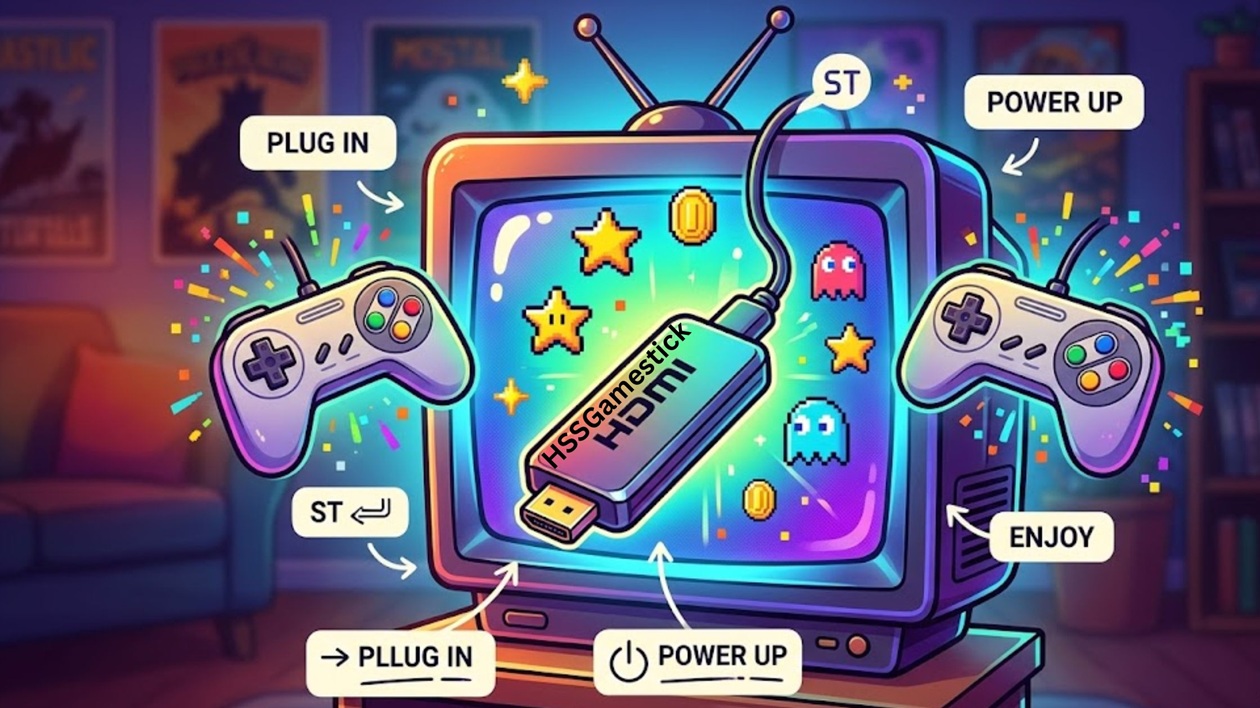
- Connection to HDMI: Insert the gamestick to HDMI of the TV. When there is not enough space, the HDMI extension cable will be more convenient to place.
- Connect Power Supply: Plug the USB power cable into the game stick, and insert it into a power supply. This could be a TV USB port or adapter.
- Install USB Receiver: Connect the wireless controller receiver to the USB port of the game stick. This is a must in controller connectivity.
- Turn on Your TV: Select the appropriate HDMI with the game stick connected to it.
- Wait for the Interface to Load: It should take a couple of seconds before you see the gaming menu on your screen.
How to Load and Play Games
The experience of playing games on the HSSGamestick is highly intuitive. It is easy to navigate for seasoned players and beginners alike.
- Select Category: Select between the available options, such as arcade or console games.
- Browse or Search: Search the list by scrolling through it or use the search bar (where available).
- Choose the Game: Press the confirm/start button to start the game you like.
- Start Gameplay: In some games, one needs to press the “Start” button again in order to play after loading.
Customizing Settings
The HSSGamestick has a number of customisation options to improve your gaming experience. You can use these to enhance images, audio and controls.
- Display Settings: Change the picture resolution on the TV and make it clearer and more effective.
- Audio Options: Adjust the sound levels or sound output according to your configuration.
- Mapping of Controllers: Make the buttons more comfortable to play.
- Emulator Options: If you are an advanced user, you can change performance options to make the game easier to play.
Troubleshooting Common Issues
Although the device is easy to use, you can face some minor problems occasionally. Here are some quick fixes:
- No Image on the Screen: Check the HDMI connection and make sure that the right input source of the device is there.
- Controller Issues: Change batteries, reconnect the receiver, or re-pair the controller.
- Game Lag/Freezing: Reboot or reduce the resolution.
- Lack of power in the device: Check the USB cable and the source of power.
With minor modifications, you will be able to solve most of the issues.
Maintenance and Care Tips
Caring about your HSSGamestick is a guarantee of an extended operation. Store it in a dry area with low temperature and never expose it to dust or moisture. Handle the controllers gently and change batteries on a regular basis. When using a memory card, make sure that you do not remove it while the system is on. The sudden removal or insertion might corrupt the data.
The Benefits of Using HSSGamestick.
The biggest benefit of the HSSGamestick is its convenience. It does not require a number of consoles, as it provides a huge variety of games on a single device. It also stands out as very portable, thus easy to carry around and use on various TVs. The wireless controllers are more comfortable and flexible, particularly for multiplayer gaming.
FAQs
Is HSSGamestick internet-based?
No, every game is already loaded, allowing you to play offline.
Is HSSGamestick suitable for kids?
Yes, it is simple to play and offers a great range of family-oriented games.