

| Section | What You’ll Learn |
| Introduction | Why people stream Disney Plus on Discord |
| Requirements | What you need before streaming |
| Method 1 | Stream Disney Plus using Discord on PC |
| Fix Black Screen Issues | Common solutions for streaming problems |
| Improve Stream Quality | Tips for better video and audio |
| Streaming on Mobile | Whether Disney Plus can be streamed from a phone |
| Troubleshooting | How to fix common errors |
| Conclusion | Final thoughts |
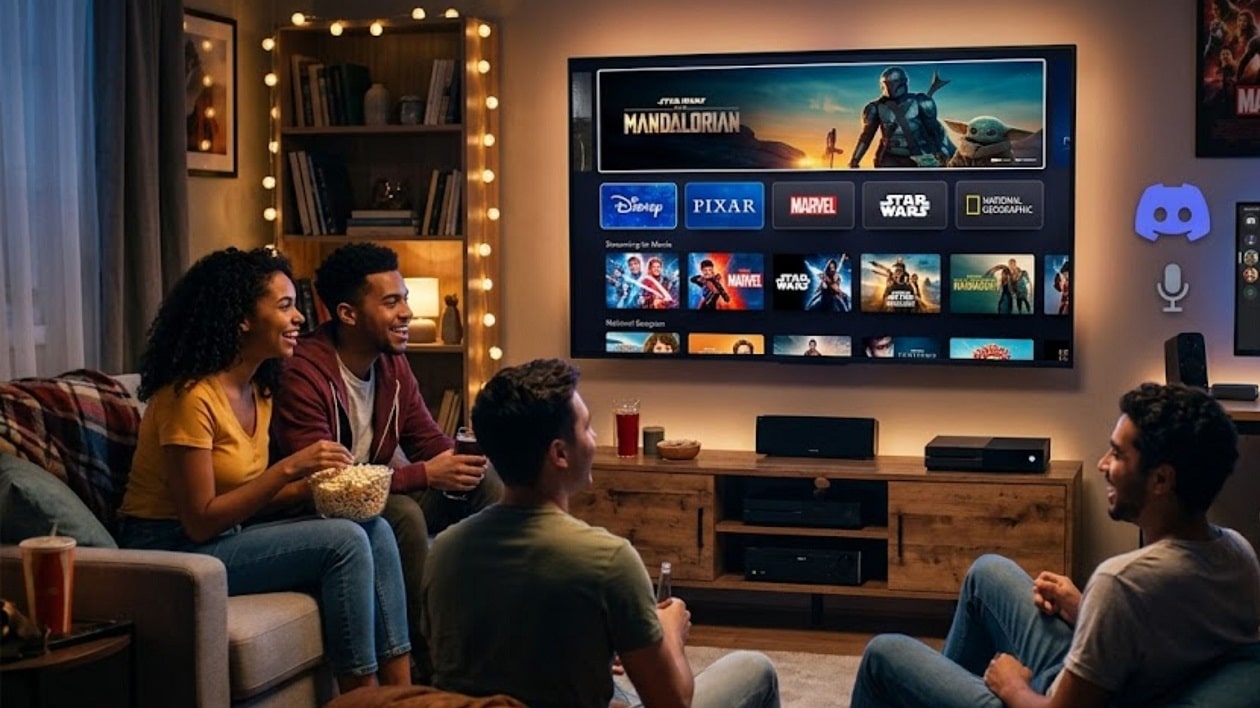
It is easier to watch movies and TV shows with friends so that you can enjoy them better. Discord is now among the most widespread applications to host virtual watch parties, gaming sessions and commons. Lots of users would like to stream Disney Plus on Discord, watching their favorite movies, series, and films of Marvel and Star Wars, as well as Pixar and Disney classics.
Nonetheless, not everything is so straightforward when streaming Disney Plus on Discord. With Digital Rights Management (DRM) protection, most users will see a black screen rather than the video when sharing the screen. Luckily enough, this problem can be addressed through a number of methods and facilitate the seamless streaming process.
This guide explains how to stream Disney Plus on Discord and how to fix the most common problems along the way.
What You Need Before Streaming
Before you begin, make sure you have the following:
- An active Disney Plus subscription
- A Discord account
- The Discord desktop application
- A stable internet connection
- Updated web browser or Disney Plus app
- Microphone or headset for communication
The Discord desktop app is preferable since it has superior streaming capabilities and performance compared to the browser-based one.
Method 1: Stream Disney Plus on Discord Using a PC
These are the steps that one needs to follow in order to stream Disney Plus on Discord.
Step 1: Open Discord
Launch the Discord desktop application and log in to your account.
Step 2: Open Disney Plus
Go to Disney Plus using your favorite browser or open the Disney Plus app. Log In and choose the film or TV series to stream.
Step 3: Add Your Browser as a Registered Game
Discord fails to realize your browser as something to be streamed.
To add it:
- Open Discord Settings.
- Select Registered Games or Activity Settings.
- Click Add It.
- Choose the browser running Disney Plus.
- Save the settings.
Step 4: Join a Voice Channel
Enter the Discord server where you want to stream and join a voice channel.
Step 5: Start Screen Sharing
- Select the Screen button on the lower-left.
- Choose the browser or Disney Plus app.
- Choose your preferred resolution and frame rate.
- Click Go Live.
Your friends in the voice channel can now watch the stream.
How to Fix the Disney Plus Black Screen on Discord
The most common issue that releases itself during the streaming of Disney Plus is the black screen issue. This is due to the fact that Disney Plus incorporates the use of DRM to bar illegal content sharing.
The following are some of the good fixes.
Disable Hardware Acceleration in Your Browser
Hardware acceleration often triggers DRM-related streaming issues.
Google Chrome
- Open Chrome Settings.
- Select System.
- Turn off Use hardware acceleration when available.
- Restart Chrome.
Microsoft Edge
- Open Settings.
- Go to System and Performance.
- Disable hardware acceleration.
- Restart the browser.
Firefox
- Open Settings.
- Scroll to Performance.
- Uncheck recommended performance settings.
- Disable hardware acceleration.
- Restart Firefox.
After disabling hardware acceleration, try streaming Disney Plus again.
Disable Hardware Acceleration in Discord
Discord’s hardware acceleration can also contribute to black screen problems.
- Open Discord Settings.
- Navigate to Advanced.
- Turn off Hardware Acceleration.
- Restart Discord.
Run Discord as Administrator
Running Discord with administrator privileges can improve compatibility and reduce streaming issues.
- Close Discord.
- Right-click the Discord icon.
- Select Run as Administrator.
Update Discord
An outdated Discord version may cause streaming glitches.
To update:
- Close Discord completely.
- Reopen the application.
- Discord automatically checks for updates.
Tips for Better Streaming Quality
To make watch-partying easier, you may wish to take into consideration the following suggestions.
Use a Wired Internet Connection
Ethernet connections tend to be very stable when compared to Wi-Fi which decreases buffering and delay.
Close Unnecessary Applications
Background applications are resource consuming. Shut down close programs which you do not require before streaming.
Select the Correct Resolution
Select a resolution according to your computer and internet speed.
Common options include:
- 720p for average connections
- 1080p for high-speed internet
- 60 FPS for smoother playback
Use a Quality Headset
A headset helps eliminate echo and improves communication during the stream.
Can You Stream Disney Plus on Discord Mobile?
Watching Disney Plus over a mobile phone (with Discord) is not as reliable as with a PC.
Many users experience:
- Black screens
- Audio issues
- Performance limitations
- Reduced stream quality
To maximize the experience, a desktop or laptop computer is best when hosting Discord watch parties of Disney Plus.
Troubleshooting Common Problems
No Audio During Stream
If viewers cannot hear audio:
- Restart Discord
- Check system audio settings
- Verify the correct application window is selected
- Update audio drivers
Stream Keeps Lagging
To reduce lag:
- Lower stream resolution
- Close bandwidth-heavy applications
- Use a faster internet connection
- Restart your router
Discord Crashes While Streaming
If Discord crashes frequently:
- Update Discord
- Update graphics drivers
- Disable unnecessary overlays
- Restart your computer
Disney Plus Video Not Loading
Try these fixes:
- Refresh the page
- Clear browser cache
- Sign out and sign back into Disney Plus
- Test another browser
Conclusion
Watching Disney Plus on Discord is an excellent option to watch movies and TV shows with friends, regardless of their locations. Although in some cases DRM protection may lead to black screens, the majority of the problems can be fixed by turning off hardware acceleration in your browser and in Discords.
As soon as you have a proper configuration, you will be able to have virtual movie nights, watch those trending series, or watch Disney classics with few interruptions. By following the steps and troubleshooting tips in this guide, you’ll be able to stream Disney Plus on Discord smoothly and create a better viewing experience for everyone involved.